 Slids
SlidsWhat is a seamless carousel?
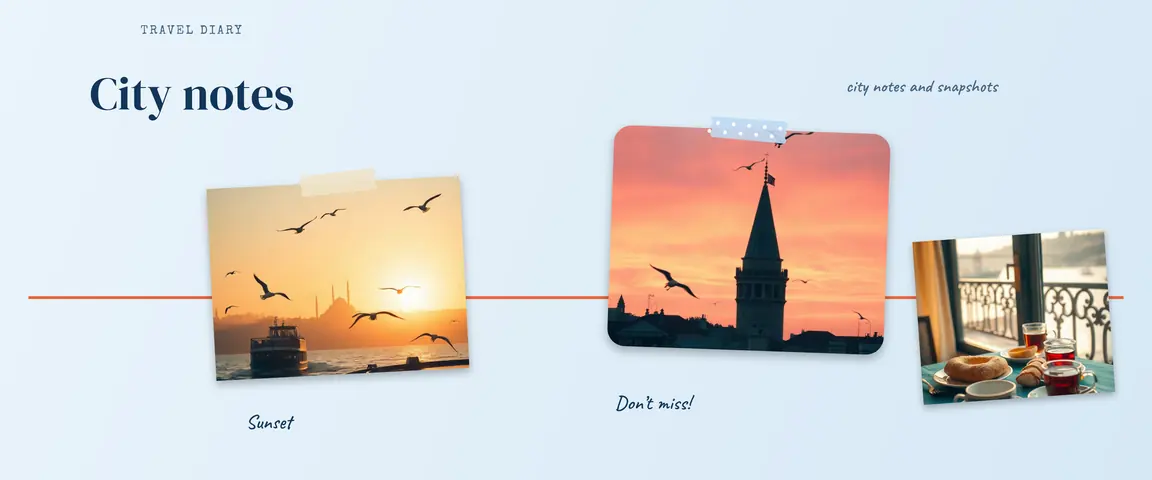
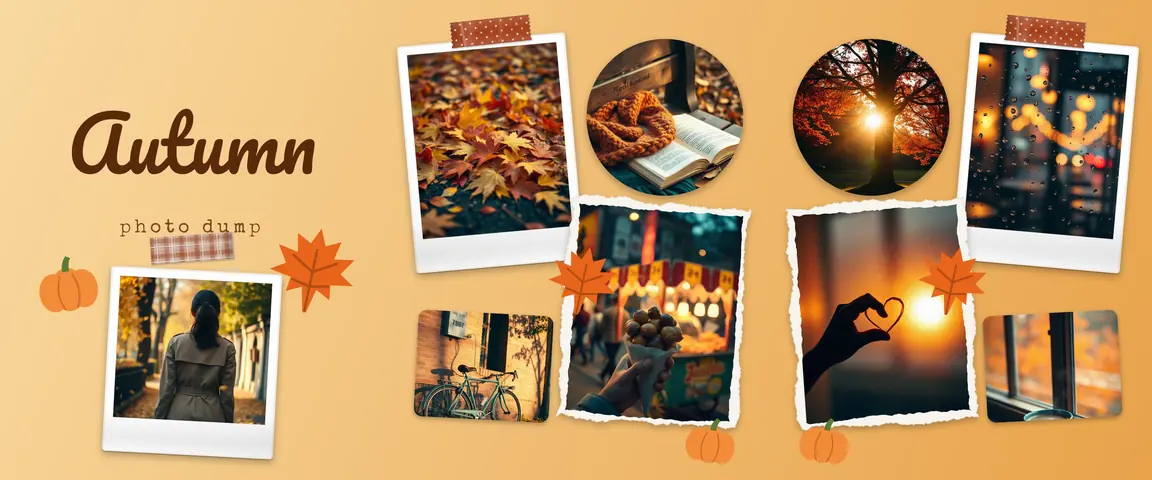
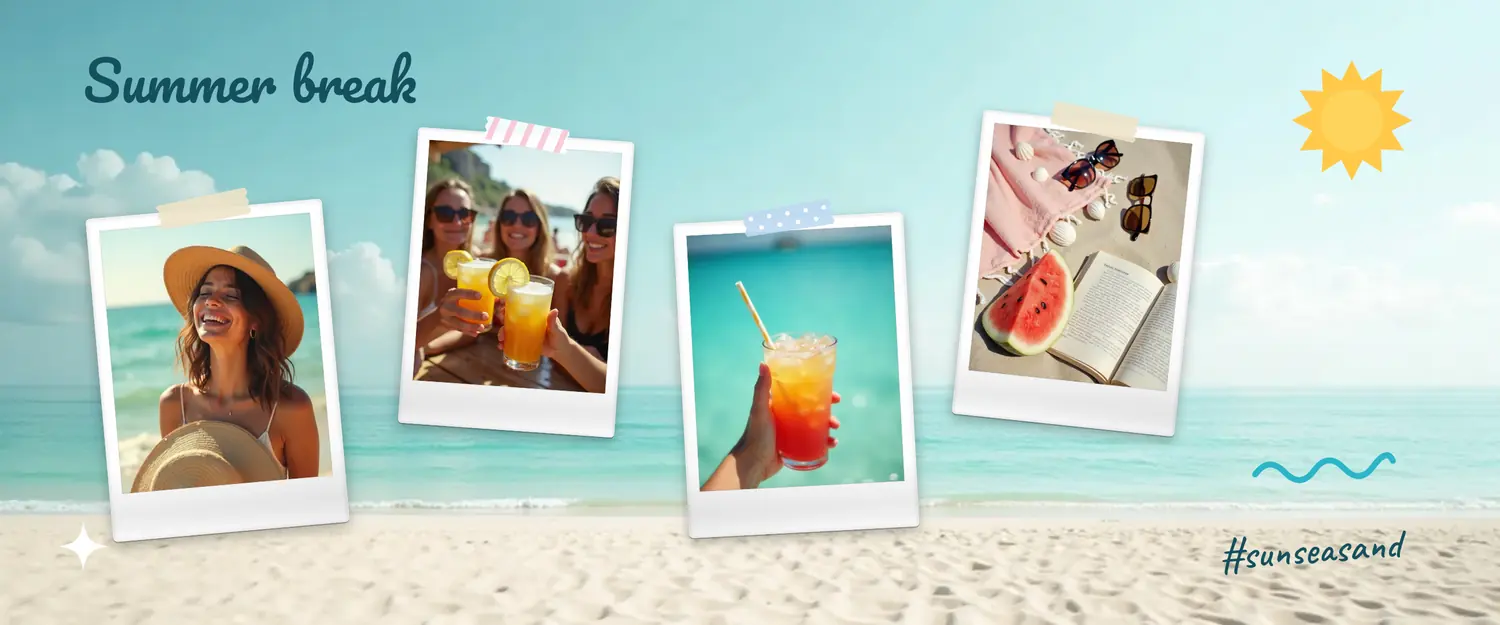
When you add more than one photo to an Instagram post, you get a carousel. Usually each slide stands on its own: one photo ends, the next one begins. In a seamless carousel, every slide is cut from one wide canvas. Half of a photo sits on the first slide and the other half on the second, so the picture picks up exactly where it left off as people swipe.
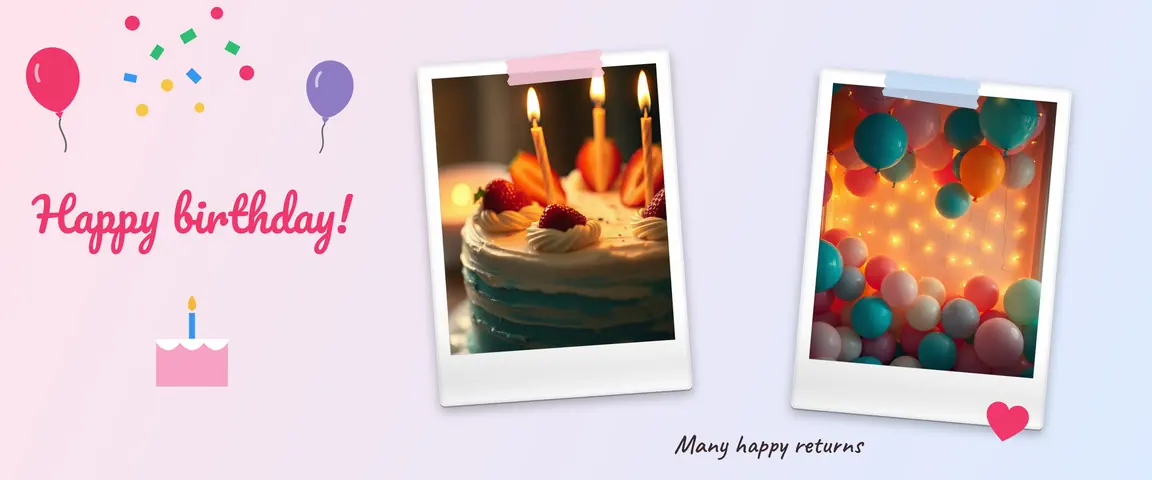
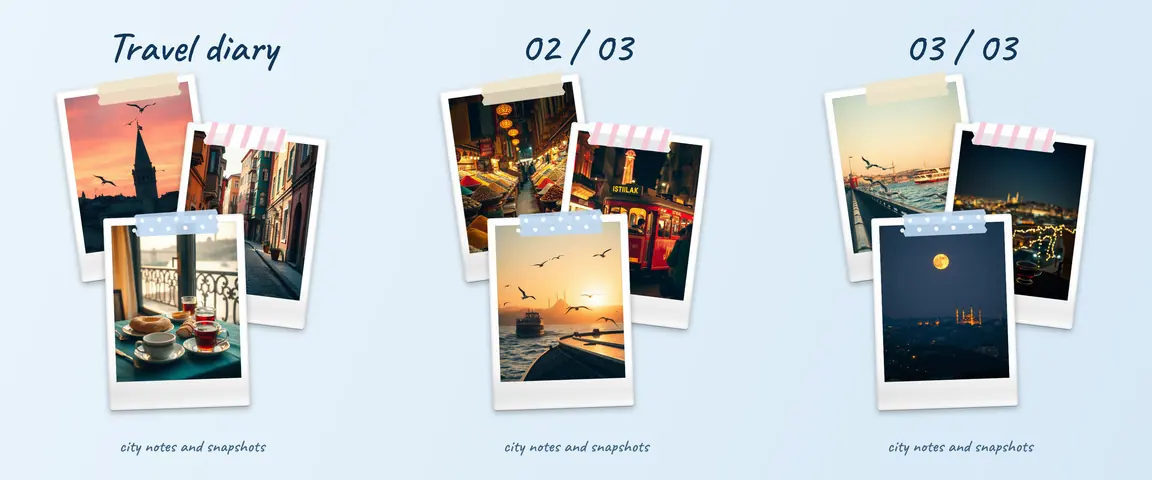
That makes it a great fit for posts that tell a story: panoramas, travel diaries, photo dumps, birthdays or product launches. Swiping builds curiosity, and people keep going to see what comes next.
 123
123How it works: one canvas, equal slides
There is only one rule: the canvas width must be an exact multiple of the slide width. Instagram’s most common portrait size is 1080 × 1350 pixels (4:5), so:
- a 3-slide carousel needs a 3240 × 1350 canvas,
- 4 slides need 4320 × 1350,
- 5 slides need 5400 × 1350 pixels.
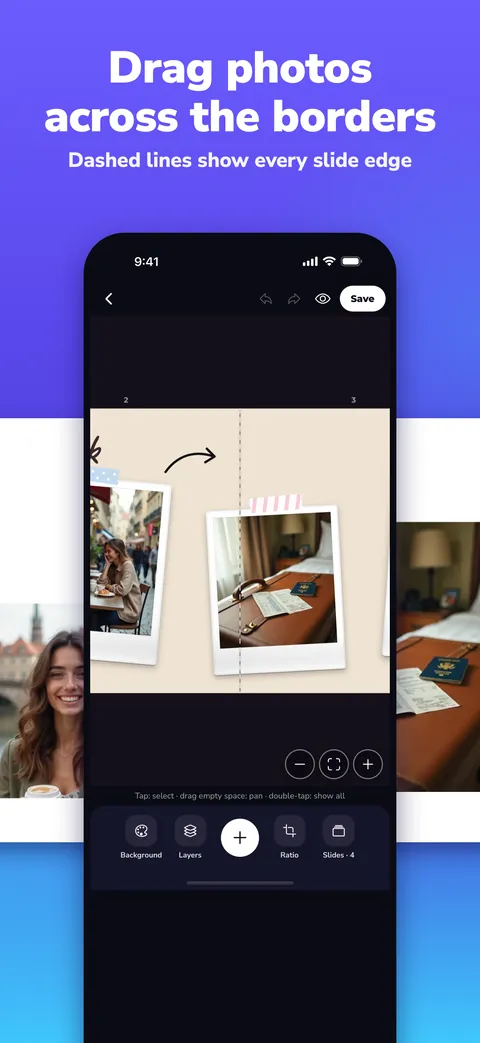
The canvas is then cut into equal parts from left to right, and each part is saved as its own image. You can do this by hand in a desktop design tool with guides, but if you are off by a single pixel, a thin jump shows up where the slides meet. Slids does the measuring and cutting for you: it sets up the canvas for your slide count, shows slide borders as dashed lines, and splits the slides at full resolution when you save.
Step by step in Slids
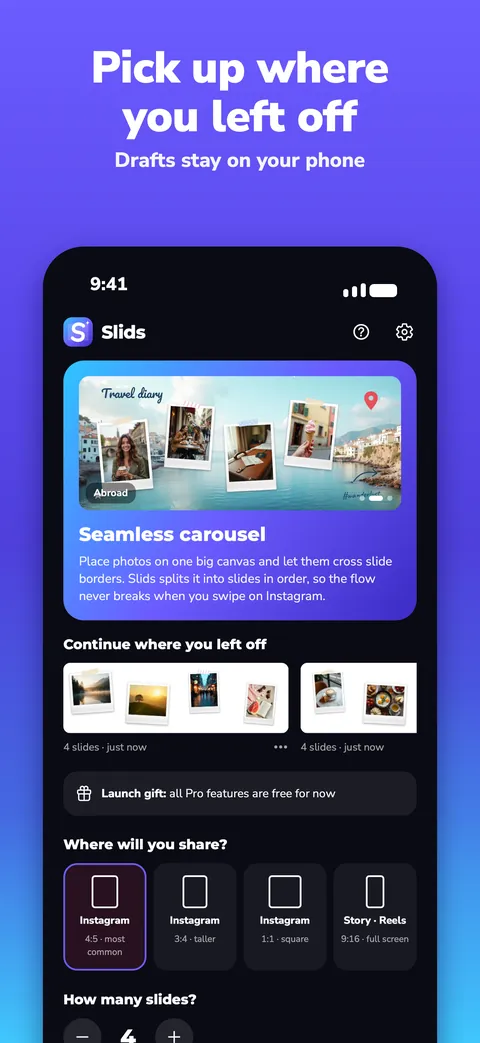
- Pick a format. Open Slids. Under “Where will you share?” on the home screen, choose Instagram 4:5, the size that takes up the most space in the feed. Set the number of slides with “How many slides?” (you can add or remove slides later while editing).
- Choose how to start. If you have a wide landscape or group photo, tap “Split a long photo”: Slids cuts it into equal slides and suggests a slide count based on its width. To build your own layout, tap “Start with a blank canvas”. For a quick start, tap one of the templates on the home screen and choose “Use this template”.
- Add your photos. On a blank canvas, (+) Add → “One photo per slide” puts each photo on its own slide, while “Collage” scatters them across the canvas. In a template, the “Choose your photos” button at the top fills the frames in the order you pick.
- Cross the borders. This is where the magic happens. The dashed lines on the canvas are the edges of your Instagram slides. Drag a photo onto a line so half of it sits on one slide and half on the next. To make a photo cover two whole slides, select it and tap “Fill” → “Span 2 slides”.
- Decorate. Use (+) Add for text, stickers and paper labels. Placing a title or an arrow across a border strengthens the flow, because the eye follows the arrow and swipes.
- Save. Tap “Save” in the top right. Your slides are saved to your gallery in order, starting from 1, at full resolution.
- Post on Instagram. Start a new post on Instagram, tap the multi-select icon and pick the slides in order: 1, 2, 3… The most recently saved image appears first in your gallery, so start from slide 1, not from the first image you see. Then share.
6 tips that keep the flow intact
- Don’t put faces right on a border. A face split down the middle looks odd mid-swipe. Let scenery, sky, a table or an object cross the line instead.
- Keep text away from borders. A sentence split across two slides is hard to read. Keep headlines inside one slide and let images do the crossing.
- Treat the first slide as a cover. It is what people see first in the feed and on your profile grid. Use a short headline, a strong photo, and an arrow or a half-visible image that invites a swipe.
- Use the background for continuity. A gradient or landscape that runs across every slide ties them together. In Slids, tap an empty spot and open “Background” for ready-made scenes or your own photo.
- Match the slide count to the story. Three to five slides are enough for most posts. Instagram allows up to 20 slides per post, but fewer people reach the end of a very long carousel.
- Keep every slide the same ratio. Instagram shows every slide in a carousel at the ratio of the first one. Slids cuts everything from one canvas, so this is never a problem; if you add slides from elsewhere, check their size.
Common mistakes
Picking slides in the wrong order. This is the most common mistake, and it breaks the flow completely. Instagram shows your selection order as numbers in small circles; swipe through the preview once before you post.
Letting Instagram crop your slides. If the post screen is set to 1:1, your slides are cropped at the edges and the seams no longer line up. Make sure the whole image is visible in the preview; if it isn’t, switch to 4:5 with the ratio button.
Cutting with screenshots. Screenshots lower the resolution and the borders never match exactly. Always export your slides at full resolution.
In short
The secret of a seamless carousel is one canvas and equal slides. Set up the right size, move your photos across the borders, save the slides in order and post them in the same order. For more on dimensions, see the Instagram carousel size guide.