 Slids
SlidsWhy panoramas look bad on Instagram
The widest ratio Instagram shows for a single post is 1.91:1 landscape. A panorama shot on a phone is often 3:1, 4:1 or even wider. Upload one and one of two things happens: Instagram crops the left and right sides, or, if you manage to fit it, the image becomes a thin band in the feed with empty space above and below. Either way, the landscape loses its impact.
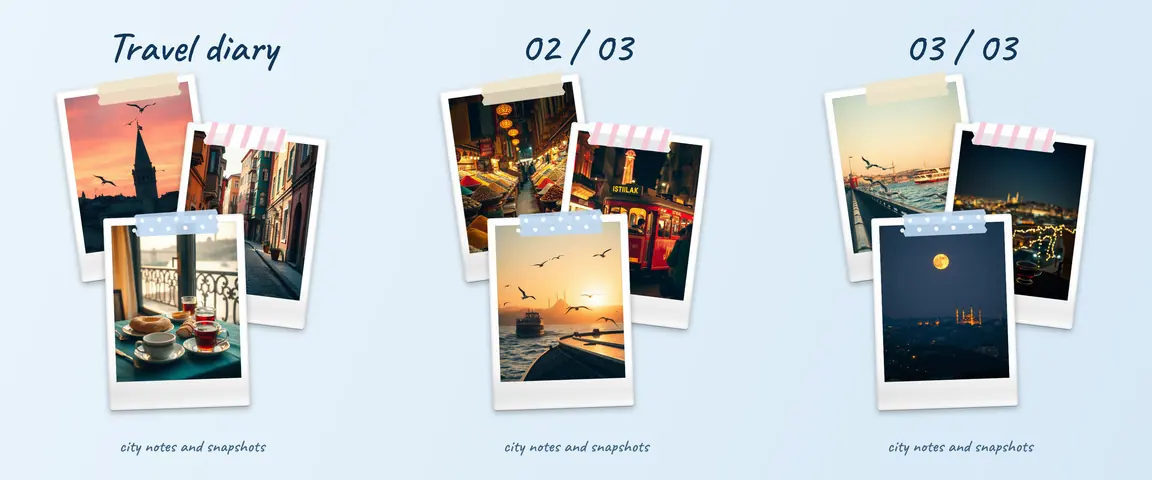
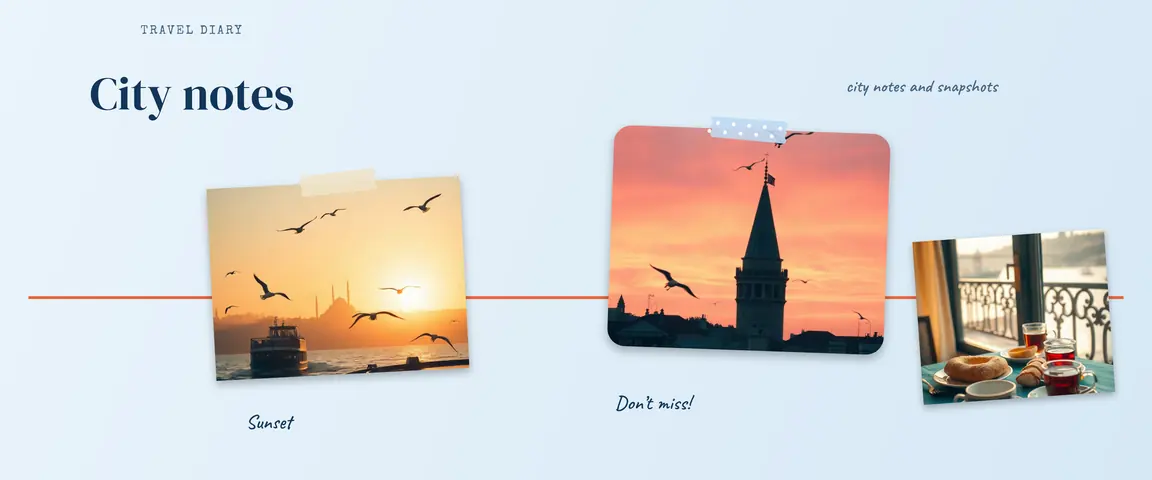
A carousel solves this. You cut the panorama into equal side-by-side pieces, and each piece shows up in the feed as a full-size slide. As people swipe, the pieces join up perfectly and they “walk” through the view from left to right.
 123
123Way 1: Upload it as a single image
The fastest option, but the weakest result. If you switch to the landscape view with the ratio button on the post screen, Instagram shows the photo at up to 1.91:1; anything wider still loses its edges. In the feed, it also takes up less than half the space of a 4:5 post. It is only acceptable for slightly wide photos, around 2:1.
Way 2: Split it by hand on a computer
In a desktop design tool, you can cut the panorama into slices of equal width. First, work out how many slides you need by dividing the panorama’s aspect ratio by the slide ratio:
- For 4:5 slides: slides ≈ (width ÷ height) ÷ 0.8
- For 1:1 slides: slides ≈ width ÷ height
Round to the nearest whole number, trim the panorama slightly so it divides evenly, and export each slice as its own file. If the slices differ by even one pixel, you will see a jump where they meet, so use guides and whole-number sizes.
| Panorama ratio | 4:5 slides | 1:1 slides |
|---|---|---|
| 16:9 (wide) | 2 | 2 |
| 2:1 | 2–3 | 2 |
| 3:1 | 4 | 3 |
| 4:1 | 5 | 4 |
| 6:1 | 7–8 | 6 |
When the math doesn’t come out even (a 2:1 panorama on 4:5 slides needs 2.5 slides), either trim a little from the top and bottom to go up one slide, or trim the sides to go down one.
Way 3: Split it on your phone with Slids
Slids does the math and the cutting for you, and your photo never leaves your device.
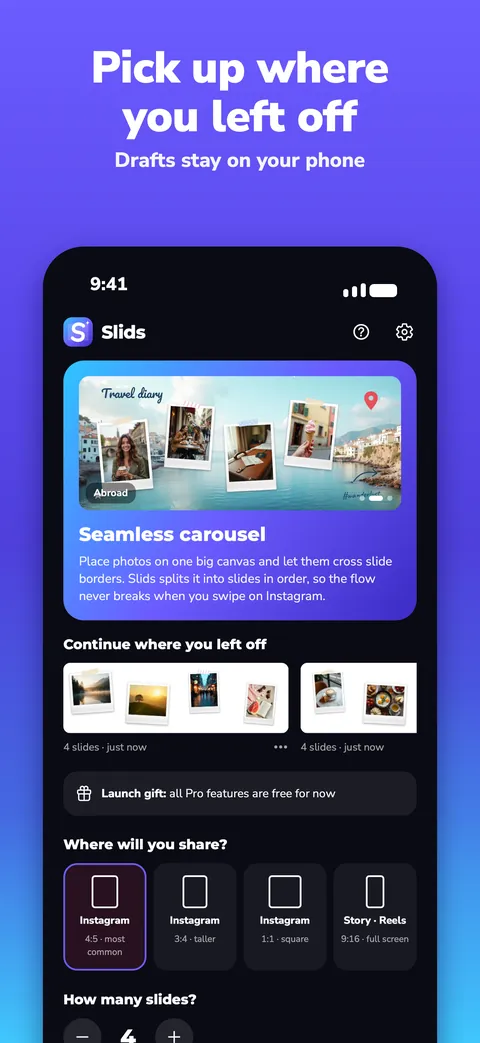
- Pick a format. Under “Where will you share?” on the home screen, choose Instagram 4:5 or 1:1. 4:5 takes up more space in the feed but needs more slides for the same panorama.
- Tap “Split a long photo”. Pick your panorama from the gallery. Slids sets the slide count from the photo’s width (at least 2, at most 20) and places the photo so it covers the whole canvas. If the ratio isn’t an exact match, a little is trimmed from the edges.
- Check the slide count. Use the “Slides” button at the bottom to add or remove slides. Fewer slides means each slide shows a wider piece of the view; look at the preview to see which works better.
- Add text and stickers if you like. (+) Add → “Text” lets you put a short title on the first slide and the place name on the last.
- Save and post in order. “Save” stores the slides in your gallery at full resolution, starting from 1. On Instagram, use multi-select and pick them in order: 1, 2, 3…
Shooting a panorama that splits well
- Keep the horizon level. A tilted horizon looks like a staircase once it is split into slides. Follow the guide line on your phone screen while shooting, and straighten the photo before posting if needed.
- Turn slowly and steadily. If you turn too fast, your phone may stitch the panorama badly, and moving people or cars can end up cut in half.
- Keep important things off the borders. A face or a sign sitting right on a slide border gets cut in two as people swipe. Adding or removing one slide moves the borders.
- Leave some height. Keep a bit of sky and ground above and below your subject; with 4:5 slides, that margin helps.
Making it stand out in the feed
The first slide should work on its own. Only the first slide shows on your profile grid, so put the most striking part of the view or a short title there.
Give a swipe cue. A road, a river or a small arrow leading to the right edge of the first slide invites people to keep swiping.
Split very long panoramas. A panorama that runs past 10 slides can be tiring on a phone. Sometimes fitting the most impressive part into 4–6 slides works better.
Check the order. Swipe through every slide once in the preview before posting. If the slides are mixed up, the panorama falls apart; this is the most common mistake.
In short
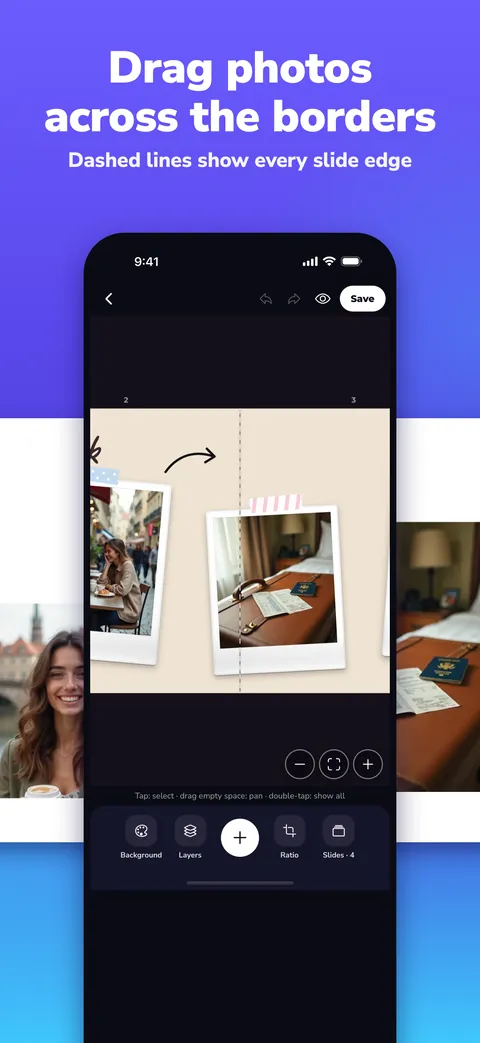
Instead of uploading a panorama as one photo, split it into equal slides and post it as a carousel. For the slide count, divide the aspect ratio by the slide ratio, or let Slids handle it with “Split a long photo”. If you want to build your own seamless layout by moving photos across slide borders, see the seamless carousel guide; for dimensions, see the carousel size guide. For more inspiration, read 15 carousel ideas.